This guide provides step-by-step instructions on how to launch Adobe Audition and sign into Adobe Creative Cloud using Fanshawe Online credentials. It is useful for individuals who want to access Adobe Audition and utilize its features for audio editing and production.
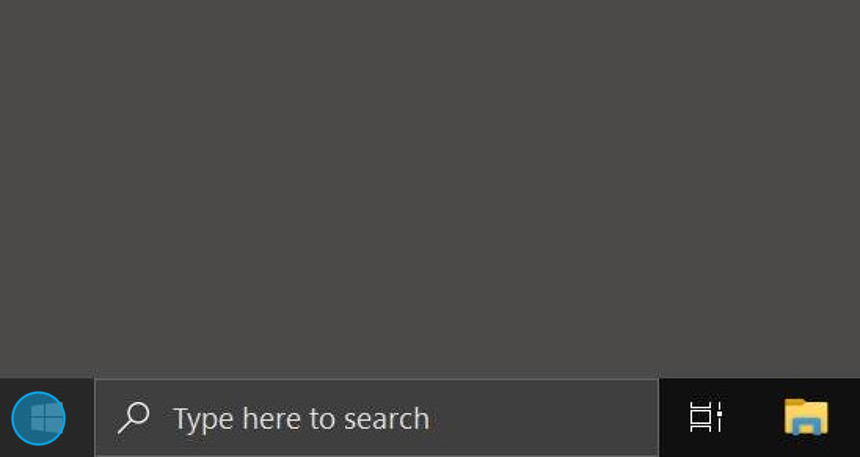
1. Click "Start"
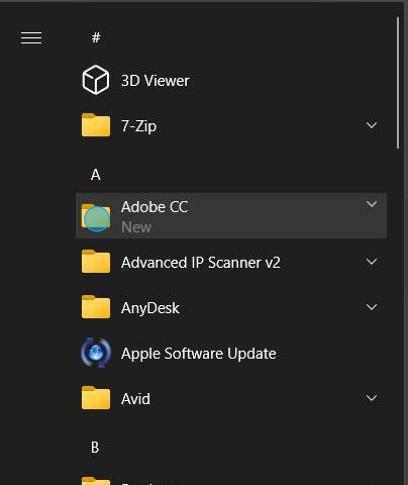
2. Click "Adobe CC" folder
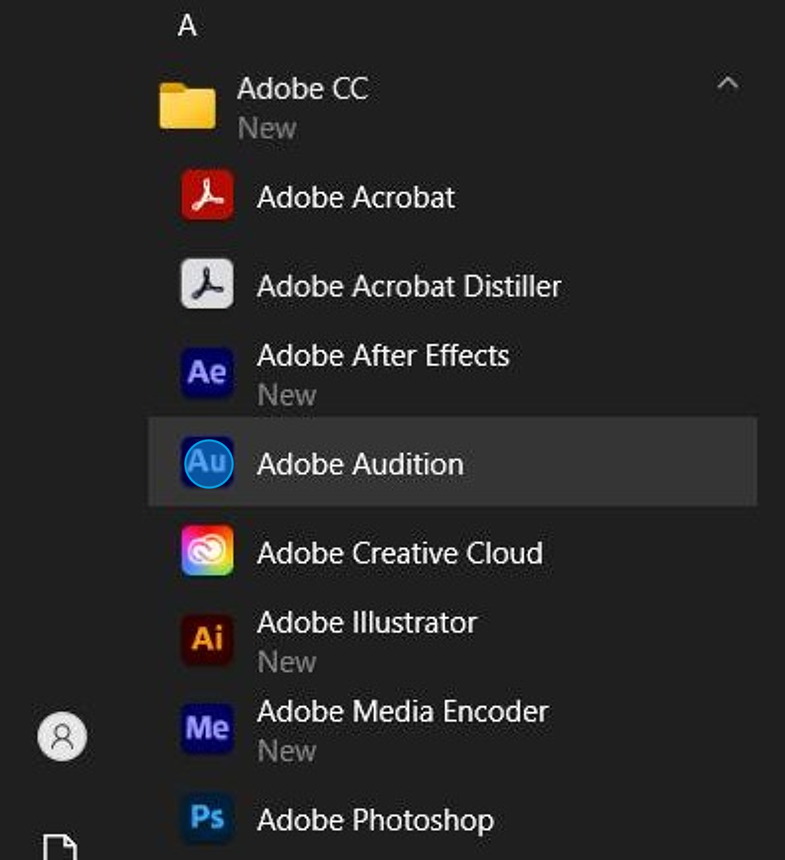
3. Click "Adobe Audition"
4. When prompted, type your in your FOL email address in full
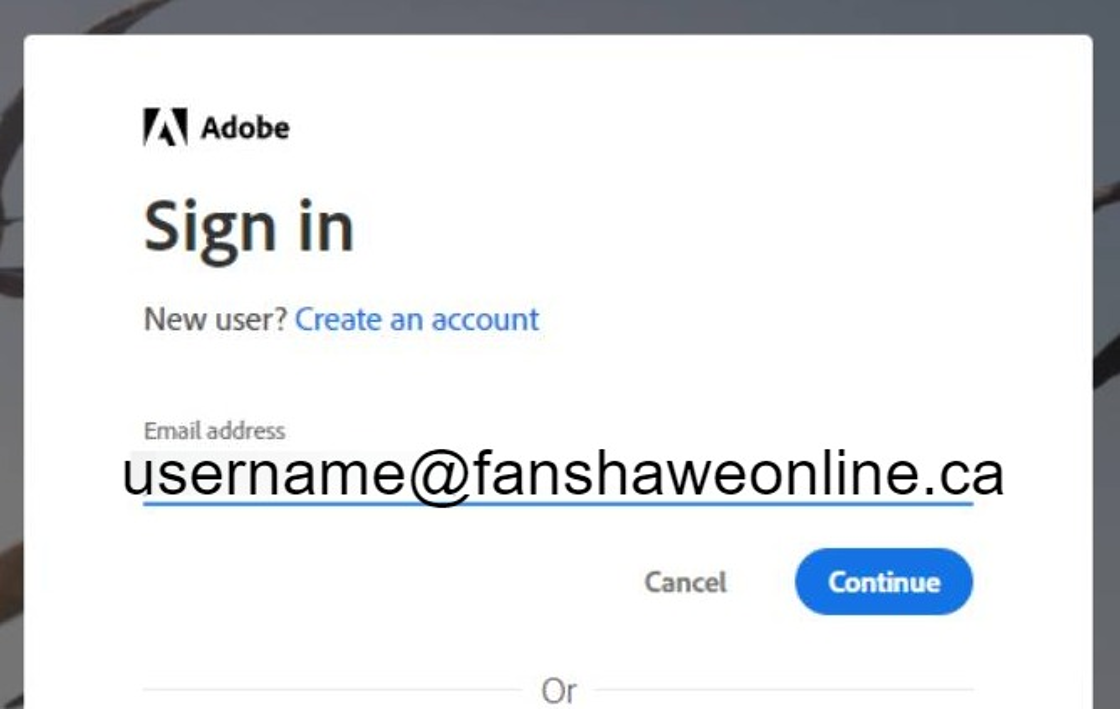
5. Click "Continue"
6. Click "Company or School Account"

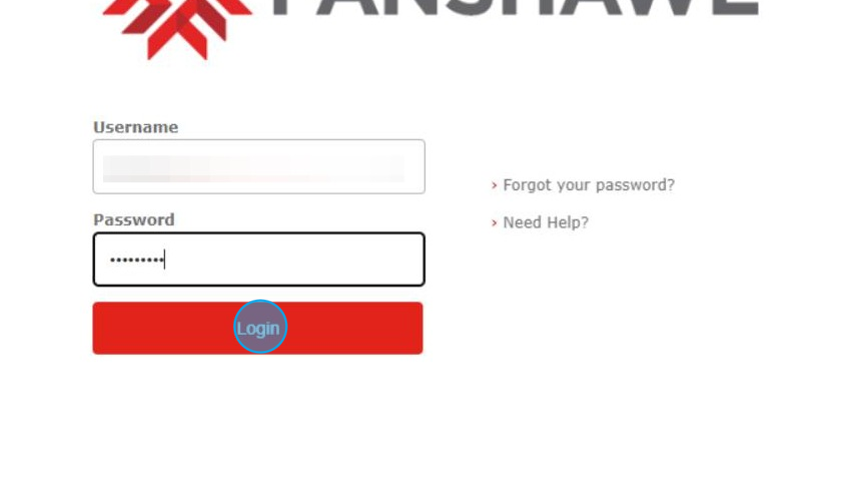
7. authenticate with your FOL username and password
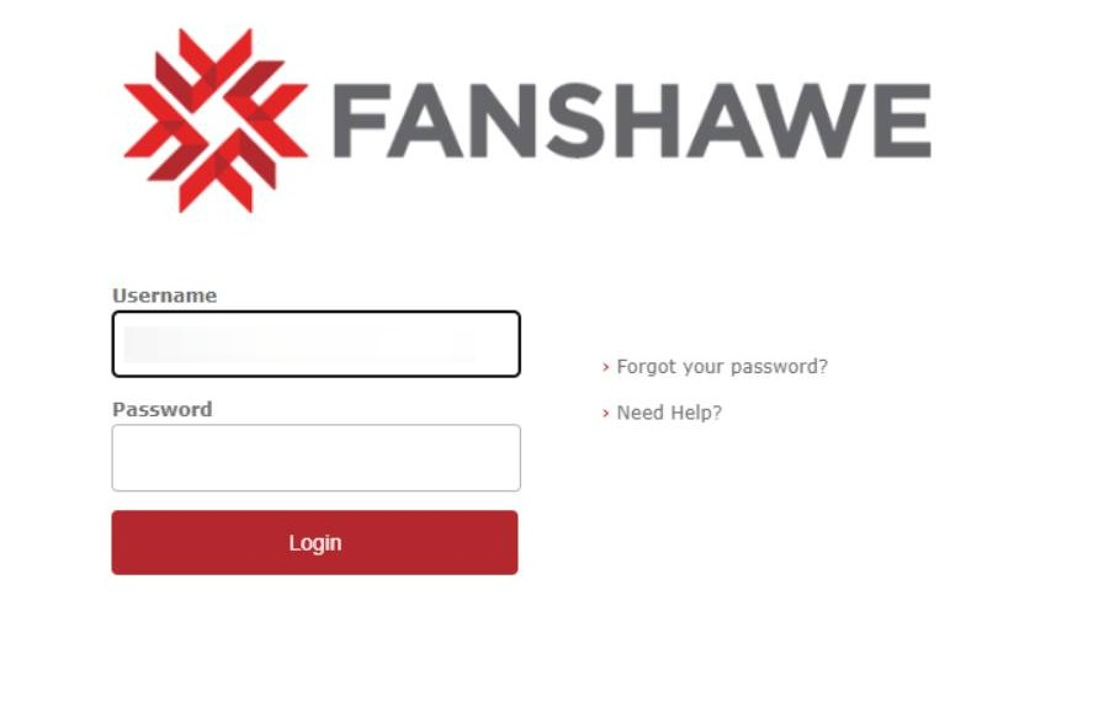
Tip: you will not need type "@fanshaweonline.ca"
8. Click "Login"
9. Adobe Audition is ready to use
Was this article helpful?
That’s Great!
Thank you for your feedback
Sorry! We couldn't be helpful
Thank you for your feedback
Feedback sent
We appreciate your effort and will try to fix the article